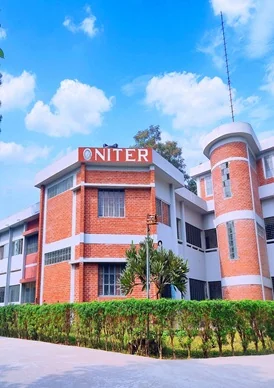
Follow this guide to complete the undergraduate admission form and reprint a submitted copy. Use a PC or laptop with a modern browser.
1. Introduction
This manual provides guidance for completing the NITER undergraduate admission form at https://admission.niter.edu.bd/public/undergraduate/admission/form/ and reprinting a submitted form at https://admission.niter.edu.bd/public/undergraduate/admission/form/reprint/ . Please use a modern browser (e.g., Chrome, Firefox, Edge) with JavaScript enabled and a stable internet connection. It is recommended to access the site using a PC or Laptop.
2. General Instructions
- All fields marked with a red asterisk (*) are mandatory.
- Ensure uploaded images (photo, student signature, guardian signature) meet specified format, size, and dimension requirements (e.g., photo: 300x300 pixels, max 200 KB, JPG/PNG; signatures: 300x80 pixels, max 120 KB, JPG/PNG).
- Complete forms in one session, as partial submissions are not saved.
- Review all entries before submission to avoid errors. Invalid inputs (e.g., incorrect image size) will trigger error messages with a blinking border and popup alerts.
- The Reset button clears all fields without confirmation; use with caution.
- Admission not started? Check https://niter.edu.bd/notice for updates.
- For reprinting, have your session, HSID, admission test roll number, and merit number ready (e.g., Session: 2024-2025, HSID: 123456, Roll No: 789012, Merit No: 150).
3. Accessing the Forms
3.1 Admission Form
- Visit https://admission.niter.edu.bd/public/undergraduate/admission/form/.
- Admission not started? Check https://niter.edu.bd/notice for updates (e.g., notice titled "Undergraduate Admission Schedule 2024-2025").
3.2 Reprint Form
- Visit https://admission.niter.edu.bd/public/undergraduate/admission/form/reprint/.
- Enter required details to verify and reprint your form (e.g., Session: 2024-2025, HSID: 123456, Roll No: 789012, Merit No: 150).
4. Admission Form Instructions
4.1 Office Use Section
- Program Name: Select your undergraduate program from the dropdown (e.g., B.Sc. in Textile Engineering).
- HSID: Enter your unique HSID provided by University of Dhaka (e.g., 123456).
- Session: Automatically set to the active session (e.g., 2025-2026). If no session is available, the form will display a message.
- Photo: Upload a recent color passport-size photo (300x300 pixels, max 200 KB, JPG/PNG). Invalid uploads trigger an error popup and reset the preview.
4.2 Student Use Section
- Admission Test Roll No: Enter your roll number provided by University of Dhaka (e.g., 789012).
- Admission Test Serial No: Enter the serial number provided by University of Dhaka (e.g., 4567).
- Admission Test Merit No: Enter your merit position provided by University of Dhaka (e.g., 150).
- Admission Test Merit Score: Enter your score (e.g., 85.50).
4.3 Student's Information
- Name (Block Letter): Enter in English (e.g., MD RAHIM KHAN).
- Name (Bengali): Enter in Bengali (e.g., মো. রহিম খান).
- Father's Name: Enter in English and Bengali (e.g., English: MOHAMMED ABDUL KARIM, Bengali: মোহাম্মদ আব্দুল করিম).
- Mother's Name: Enter in English and Bengali (e.g., English: FATEMA BEGUM, Bengali: ফাতেমা বেগম).
- Date of Birth: Use the date picker (e.g., 15-03-2005).
- Blood Group: Select from dropdown (e.g., A+).
- NID/BCN: Enter National ID or Birth Certificate Number (e.g., 1995123456789).
- Gender: Select Male or Female (e.g., Male).
- Nationality: Default is “Bangladeshi”.
- Religion: Select from dropdown (e.g., Islam).
- Student Mobile No: Enter your active mobile number (e.g., 01XXXXXXXXX).
- Father/Mother Mobile No: Enter parent’s active mobile number (e.g., 01XXXXXXXXX).
- Email: Enter a valid email address (e.g., rahim.khan@gmail.com).
4.4 Mailing and Permanent Address
- House/Flat/Road/Village: Enter details (e.g., House No: 12, Flat 3B, Green Park Road, Banani).
- P.O.: Enter Post Office name/code (e.g., Banani P.O., Dhaka-1213).
- District: Select from dropdown (e.g., Dhaka). Upazila options load automatically after selection.
- Upazila/P.S.: Select after choosing district (e.g., Banani). Ensure district is selected first.
4.5 SSC and HSC/Equivalent Level
- Degree Name: Pre-filled as “SSC/Equivalent” or “HSC/Equivalent” but editable (e.g., SSC).
- Group/Subject: Fixed as “Science”.
- School/College: Enter institution name (e.g., Dhaka Residential Model College).
- Board: Enter education board (e.g., Dhaka).
- Roll No: Enter roll number (e.g., 123456).
- Passing Year: Enter year (e.g., 2022).
- Result: Enter GPA (e.g., 5.00).
4.6 Guardian's Information and Guardian in Place of Father / Mother
- Name: Enter full name (e.g., Mohammed Abdul Karim).
- Relation: Specify relationship (e.g., Father).
- Occupation: Enter occupation (e.g., Businessman).
- Mobile No: Enter number (e.g., 01XXXXXXXXX).
- NID No: Enter National ID (e.g., 1234567890123).
- Email: Optional (e.g., abdul.karim@gmail.com).
- Address: Provide full details (e.g., House No: 12, Green Park Road, Banani, Dhaka-1213). Select district first to load upazila options.
4.7 Terms and Conditions
- Pay fees as per NITER rules (e.g., admission fee via bank deposit as specified in the notice).
- No cancellation after procedures close; fees non-refunded.
- Improper cancellation withholds transcripts.
- Pledge: Confirm information accuracy and agree to rules by checking the box.
- Guardian Consent: Displays guardian’s name and relation (e.g., “I am Mohammed Abdul Karim, Father”).
- Signatures: Upload student and guardian signatures (mandatory, 300x80 pixels, max 120 KB, JPG/PNG; e.g., scanned signature in PNG format). Invalid uploads trigger error popups.
Required Documents:
- SSC and HSC transcripts (1 copy each; e.g., attested photocopies of mark sheets).
- Parents’ income certificate (e.g., issued by Union Parishad or City Corporation).
- Freedom fighter/tribal certificate (if applicable; e.g., attested copy of freedom fighter certificate).
- Two photos (300x300 pixels, max 200 KB, JPG/PNG; e.g., recent passport-size photos in JPG format).
- NID or birth certificate photocopy (e.g., attested copy of NID: 1234567890123).
5. Submitting the Admission Form
- Verify all fields (e.g., ensure Name and HSID match records).
- Click Submit to see a confirmation popup. Confirm to proceed.
- Wait for the processing animation, Submitting the form may take up to 15 seconds due to bill creation, credential generation, and verification of images, signatures, and other information. (e.g., “Please wait” with a loading spinner).
- Success: See success message (e.g., “Form submitted successfully!”), then redirect to the print form page where you can preview, download, or print the submitted application form.
- Failure: See the error message, correct the fields, and resubmit.
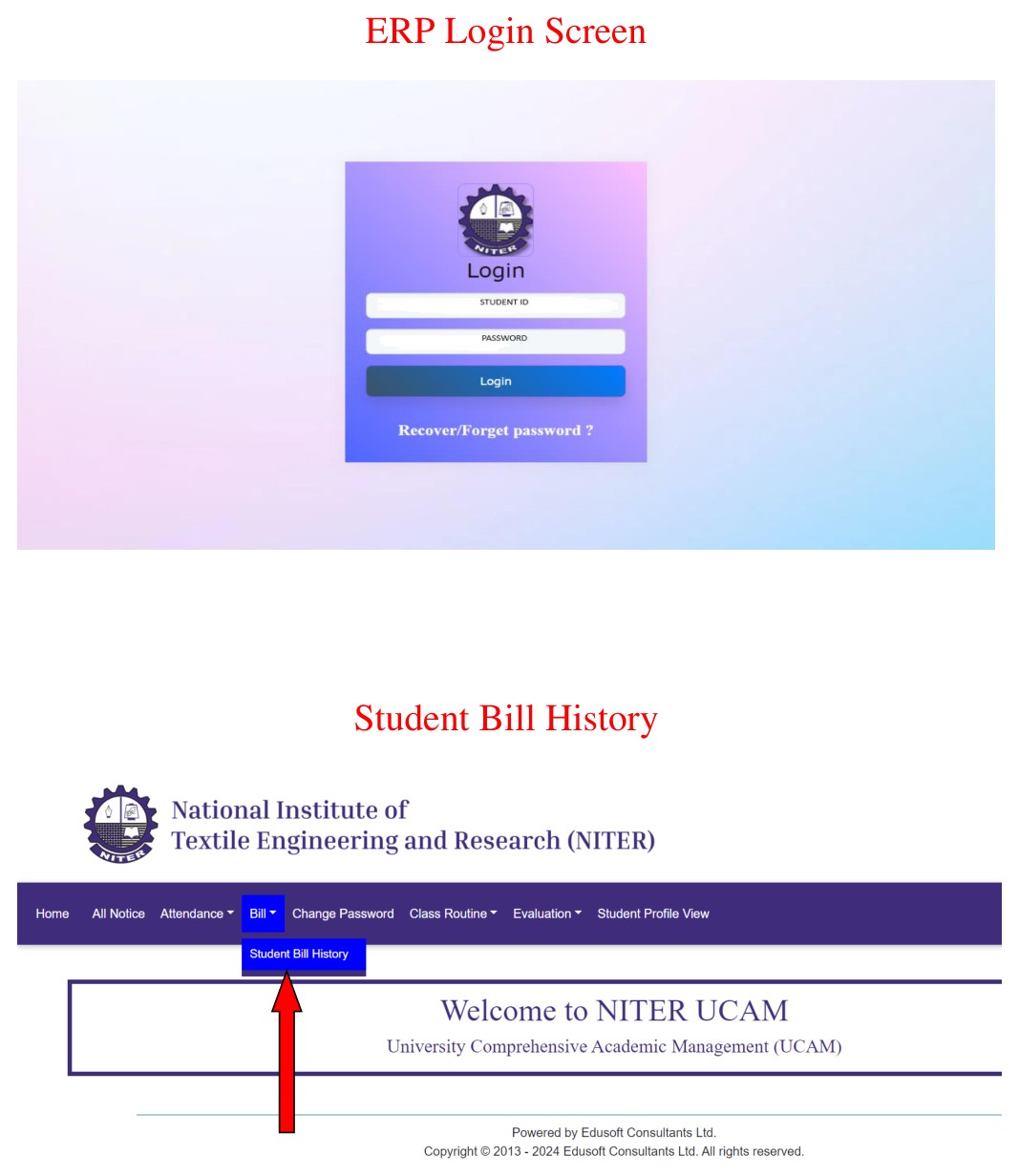
- Email Notification: Upon successful submission, you will receive an email with your temporary student ID, password, and ERP login URL , Use these credentials to log in and complete the online payment process.
6. Online Payment Instructions
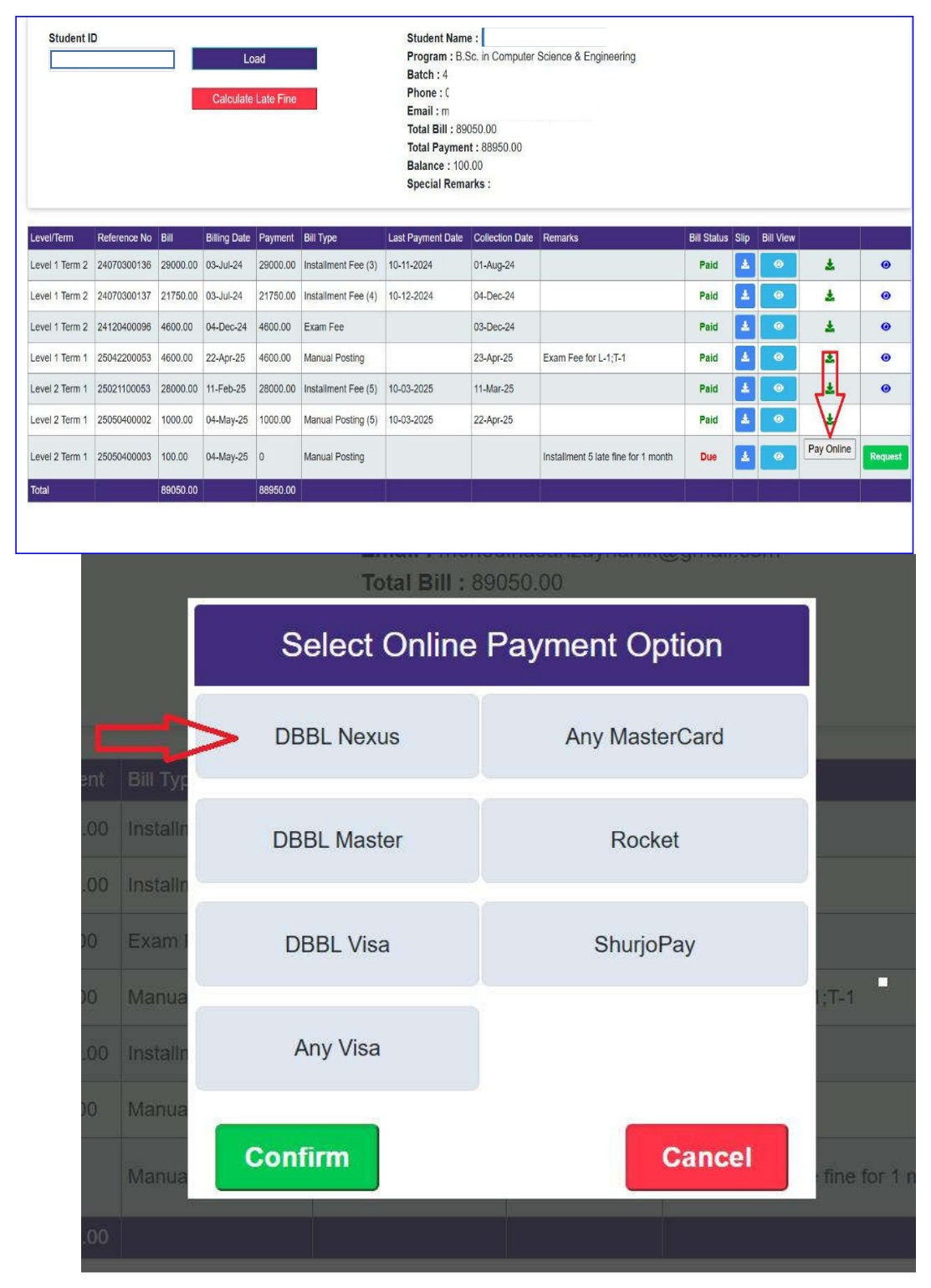
After submitting the admission form, you will receive an email containing your temporary student ID, password, and the ERP login URL. Use these credentials to log in and complete the online payment process. Follow the steps below:
- Check your email (e.g., rahim.khan@gmail.com) for the ERP login details (e.g., Temporary Student ID, Password , Login URL .
- Visit the ERP login URL and enter your temporary student ID and password.
- Follow the payment instructions in the ERP system to complete the admission fee payment.
- Ensure payment is completed within the deadline specified in the email or on https://niter.edu.bd/notice.
Payment Process Screenshots:
7. Reprint Form Instructions
Access at https://admission.niter.edu.bd/public/undergraduate/admission/form/reprint/.
7.1 Fields
- Session: Select your original submission session (e.g., 2025-2026).
- HSID: Enter your HSID (e.g., 123456).
- Admission Test Roll No: Enter roll number (e.g., 789012).
- Admission Test Merit No: Enter merit position (e.g., 150).
7.2 Submission
- Fill all fields (e.g., Session: 2025-2026, HSID: 123456, Roll No: 789012, Merit No: 150).
- Click Verify and Reprint.
- Success: Redirected to view/download form (e.g., PDF of submitted form displayed).
- Failure: Error message (e.g., “No matching record”). Correct and retry (e.g., verify HSID is correct).
- Use Reset to clear fields without confirmation (e.g., click Reset to start over if errors persist).
8. Troubleshooting
- Image Errors: Check size/format (e.g., ensure photo is 300x300 pixels, under 200 KB). Errors show as blinking borders and popups.
- Upazila Issues: Select district first to load upazila options (e.g., select Dhaka to load Banani).
- Reprint Errors: Verify inputs or contact support (e.g., ensure HSID: 123456 matches records).
- JavaScript Errors: Ensure JavaScript is enabled for image previews and upazila loading.
- Email Issues: If you don’t receive the ERP login email, check your spam/junk folder or contact support at +8801766672362.
9. Contact Information
Contact during office hours (8:00 AM to 4:00 PM, Sunday to Thursday):
- Address: NITER, Nayarhat, Savar, Dhaka, Bangladesh
- Phone: +8801766672362 (MD Jahangir Alam, IT Department)
- Website: https://niter.edu.bd
- Notice Board: https://niter.edu.bd/notice